Create Tutorial: How to add Images
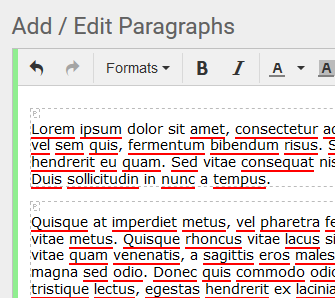
The new Create program provides a more streamlined way to add images to your story. To begin, write your story on step 1. As your write your story you will notice small, light-grey "p" areas. These are the paragraphs of your story. Although you can add more than one image to each paragraph, we recommend sticking to one image per paragraph. If you are pasting your wording from another program, you may notice more p tags than necessary, or none at all. You can add paragraph breaks by hitting the return key on your keyboard.
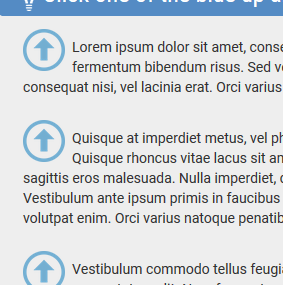
On the images tab, you will see several blue up arrows. These buttons can be used to add images directly to the paragraph. Just click the button, and select the image from your harddrive.
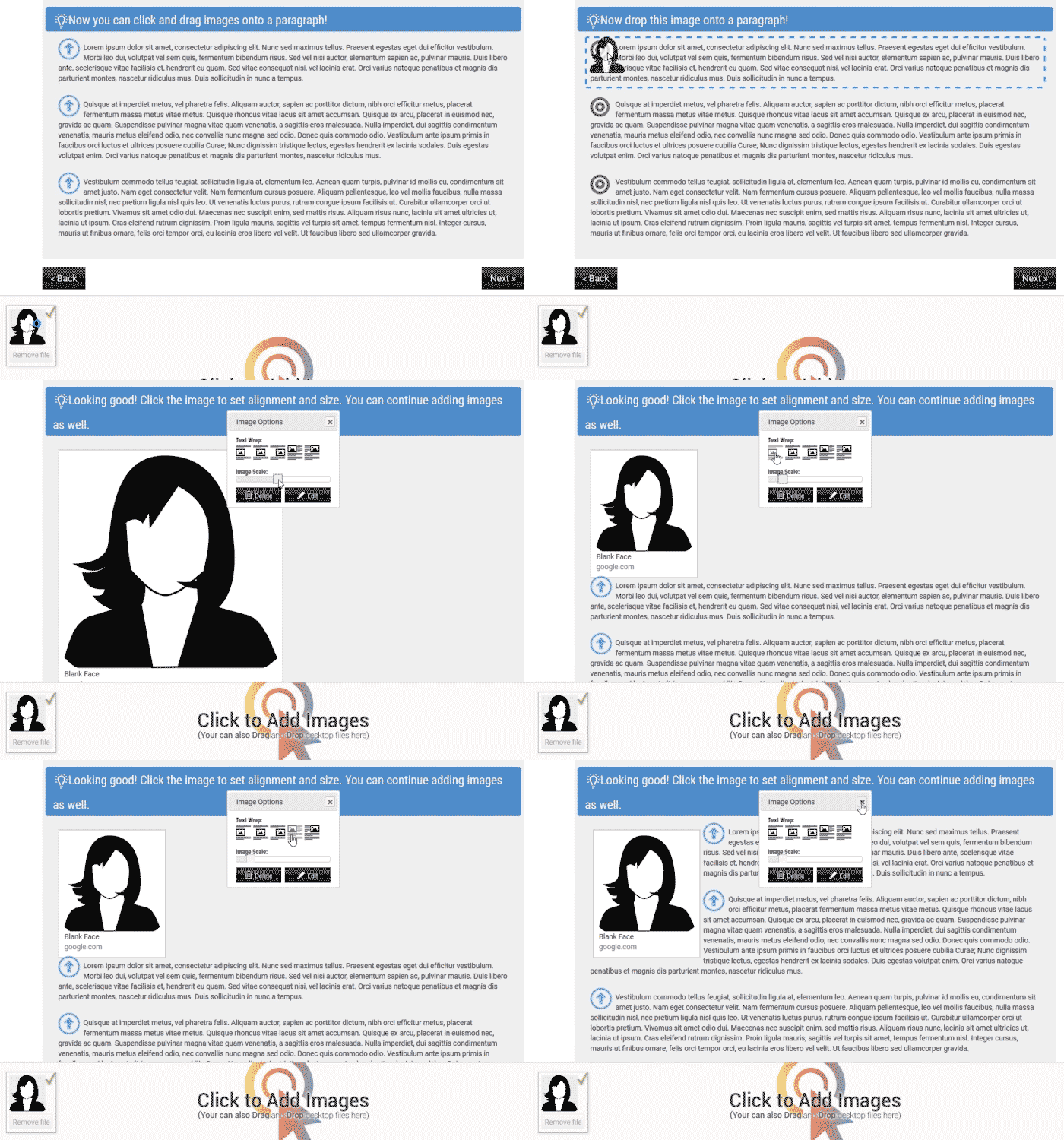
You can also add images by clicking the "Click here to Add Images" bar at the bottom of your page. This will add images to your "images tray" which you can drag and drop into your story. Once you drag and drop an image, you will be able to scale and size and align / wrap your images with your text. See below animation.